










Connect to your Mac, then open AirPlay to choose audio outputs or Screen Mirroring destinations. These controls change the Mac’s output; they do not mirror your iPhone or iPad. Windows does not provide these Mac AirPlay controls.
Sound
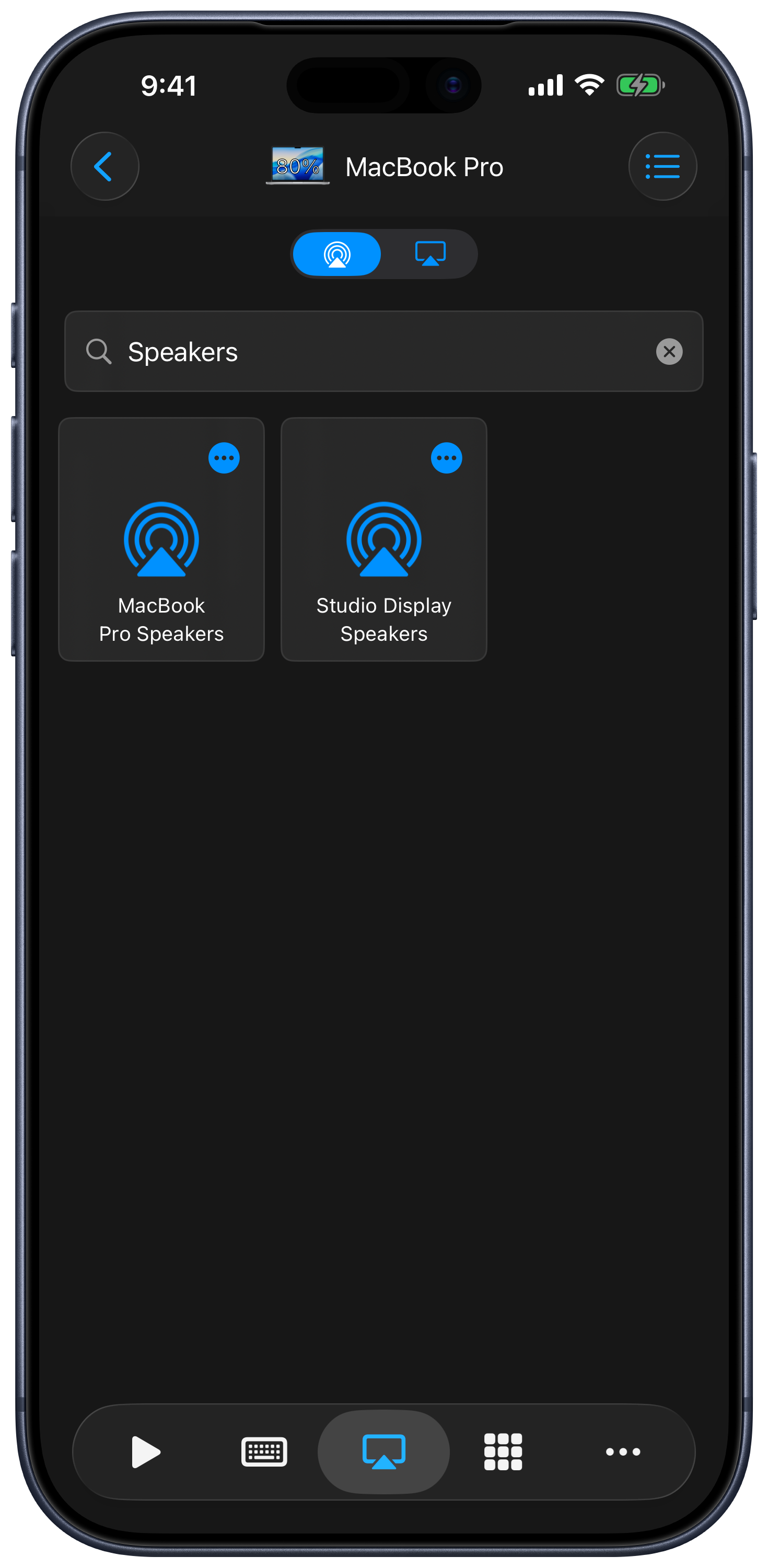
Choose the audio device reported by your Mac. The list can include local outputs and available AirPlay speakers. Search the list to find a destination and select it to switch the Mac’s audio output.
Screen Mirroring
Select an available display or Apple TV in the Screen Mirroring list. Select the active destination again to stop mirroring. After connecting, refresh to see any Mirror/Extend options reported by the Mac. Extend uses the destination as an additional desktop.
If No Devices Appear
- Keep the Mac awake and unlocked. The helper cannot fetch the output list from a locked Mac.
- Add Sound and Screen Mirroring to the Mac menu bar. The app’s empty-state instructions explain this requirement.
- Check the helper’s permissions and update Remote Helper if the app requests it.
- Make sure the output device is available to the Mac, then refresh the list.
Siri and Timers
Use a destination’s action menu for supported Siri or timer options. In Apple’s Shortcuts app, choose [Computer] AirPlay Computer Audio or [Computer] AirPlay Computer Display, then select the saved Mac and destination. See Siri and Shortcuts.